
Create a link
A slug is a short, branded link that redirects to one of your Google Forms — for example, go.formslug.com/feedback instead of a long docs.google.com/forms/d/e/... URL. Slugs are created from inside the Google Forms editor using the FormSlug add-on.

Before you start
Section titled “Before you start”- You’ve signed in to FormSlug at least once and your workspace is set up. See Sign in & install the add-on.
- The FormSlug add-on is installed for your Google Workspace account.
- You have edit access to the Google Form you want to shorten.
Open the add-on
Section titled “Open the add-on”- Open the Google Form you want to share.
- In the toolbar, click the Add-ons (puzzle-piece) icon.
- Choose FormSlug from the menu. The sidebar opens on the right.
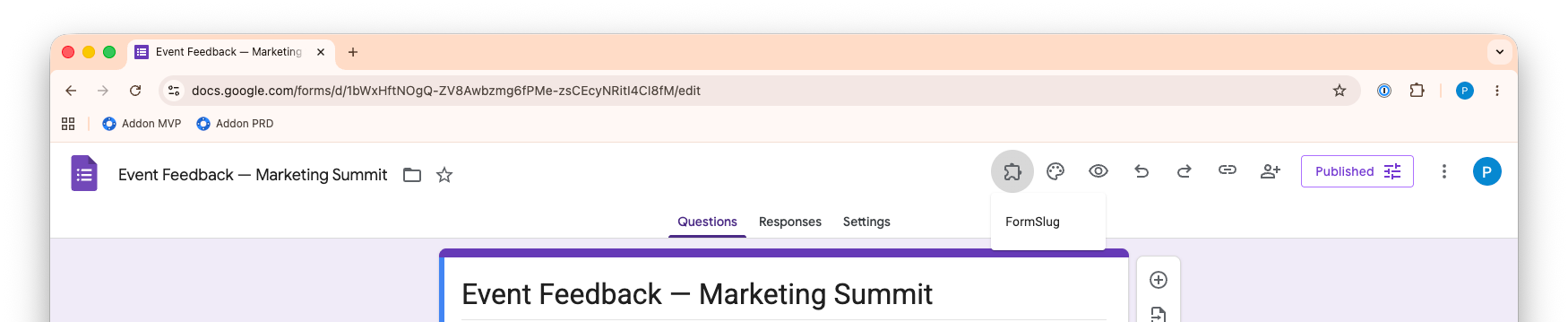
Create the slug
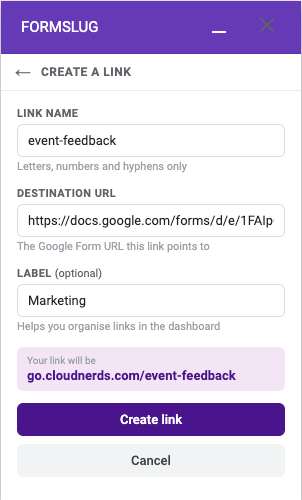
Section titled “Create the slug”- In the FormSlug sidebar, click + Create new link (or follow the onboarding prompt on first run).
- In Link name, type the slug you want — for example
feedbackorq1-launch. Letters, numbers, and hyphens only. Some names likeloginandadminare reserved. - The Destination URL is pre-filled with the URL of the form you have open; edit it if you want to point the slug at a different form.
- (Optional) Add a short Label to remember what this slug is for. Labels are visible to your team and are limited to 20 characters.
- As you type, the sidebar shows a live preview of the resulting short URL.
- Click Create link.
The sidebar shows a success screen with your new short URL and a Copy link button.
Share your link
Section titled “Share your link”Click Copy link in the sidebar, or copy the URL from My links, and paste it anywhere: email, Slack, a printed flyer, a QR code.
When someone opens the slug, FormSlug redirects them to your Google Form and counts the click toward your analytics.
Naming tips
Section titled “Naming tips”- Keep slugs short and lowercase:
signupreads better thanSign-Up-2026-Q1. - Use hyphens, not underscores:
team-survey, notteam_survey. - Slugs are unique within your workspace. If the name is taken, FormSlug tells you and you can pick another.
What’s next
Section titled “What’s next”- My links — view, edit, or delete the slugs you’ve created.
- Connect a custom domain — replace
go.formslug.comwithgo.yourcompany.com.