
My links (in the add-on)
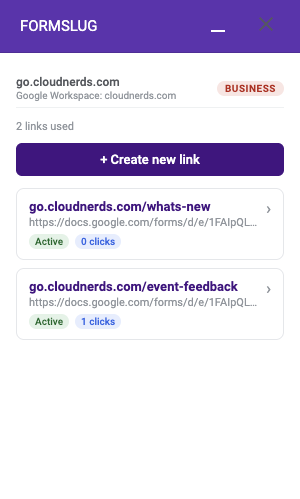
The FormSlug add-on’s home screen lists every slug in your workspace — yours and your teammates’ — with quick actions for the ones you can manage.
Open the home screen
Section titled “Open the home screen”- Open any Google Form and launch the FormSlug add-on (see The FormSlug add-on if you haven’t yet).
- After onboarding, the sidebar opens on the home screen by default.
- To get back to the home screen from any other screen, click See all my links or use the back arrow at the top.
The header shows:
- The domain your new links will use (shared or custom).
- Your plan badge (Free / Pro / Team / Business).
- A slug counter — on Free, this shows
X of 5 used.
Open a slug’s details
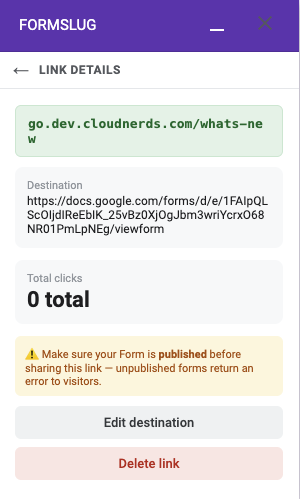
Section titled “Open a slug’s details”Click any slug in the list to open its detail screen. You’ll see:
- The short URL (with a copy button).
- The destination URL the slug redirects to.
- The total click count.
- Action buttons for Edit destination and Delete link — only enabled for slugs you can manage.
Copy a link
Section titled “Copy a link”From the home screen, click the copy icon next to any slug to copy its full short URL to your clipboard. The detail screen has a copy button too.
Edit a slug’s destination
Section titled “Edit a slug’s destination”You can change where a slug points without changing the short URL itself — useful when a form moves or is replaced.
- Open the slug’s detail screen.
- Click Edit destination.
- Paste the new Google Forms URL.
- Click Save changes.
The next click on the slug uses the new destination immediately. Anyone who has the short URL bookmarked or printed doesn’t need to update anything.
Delete a slug
Section titled “Delete a slug”- Open the slug’s detail screen.
- Click Delete link.
- Confirm in the prompt. A toast at the bottom of the sidebar lets you Undo for a few seconds in case you change your mind.
Who can edit which slugs
Section titled “Who can edit which slugs”The add-on only shows Edit and Delete buttons for slugs you have permission to manage:
- Admins and managers can edit and delete any slug in the workspace.
- Members can edit and delete only the slugs they created.
- Slugs you can’t manage show a small note explaining who to ask for changes.
On Free and Pro, the workspace creator effectively acts as admin and the role distinction doesn’t apply; the 3-tier model kicks in on Team and above.
For richer management of any slug from any device, use My slugs in the dashboard.
What’s next
Section titled “What’s next”- Create a link — make a new slug from the form you’re editing.
- Manage your slugs in the dashboard — search, filter, and export to CSV.