
Custom domain
By default, slugs you create live on the shared FormSlug domain — go.formslug.com/feedback. On paid plans you can connect a custom domain so slugs read go.yourcompany.com/feedback instead. The link feels more trustworthy and reinforces your brand.
Pick a subdomain
Section titled “Pick a subdomain”You don’t need a brand-new domain — just a subdomain of one you already control. Common choices:
go.yourcompany.comlinks.yourcompany.comforms.yourcompany.com
Pick one and make sure no other service is currently using it.
Connect your domain in FormSlug
Section titled “Connect your domain in FormSlug”- Open the FormSlug dashboard.
- In the left sidebar, click Custom domain.
- Enter your subdomain (e.g.
go.yourcompany.com). - Click Add domain.
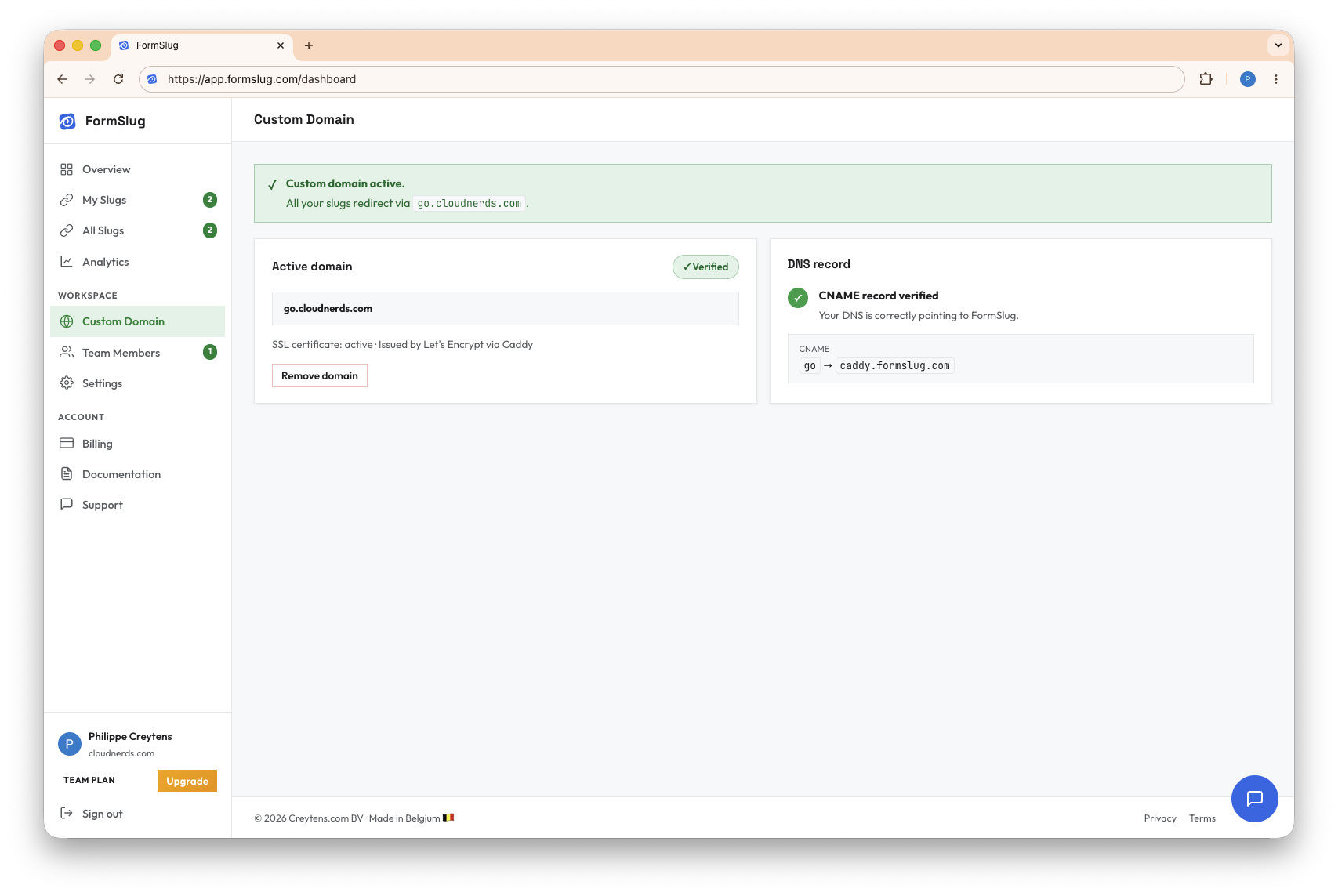
FormSlug shows you a CNAME record to add to your DNS provider.
Add the CNAME record
Section titled “Add the CNAME record”In your DNS provider (Cloudflare, Google Domains / Squarespace, GoDaddy, Route 53, etc.):
- Open the DNS settings for your parent domain (e.g.,
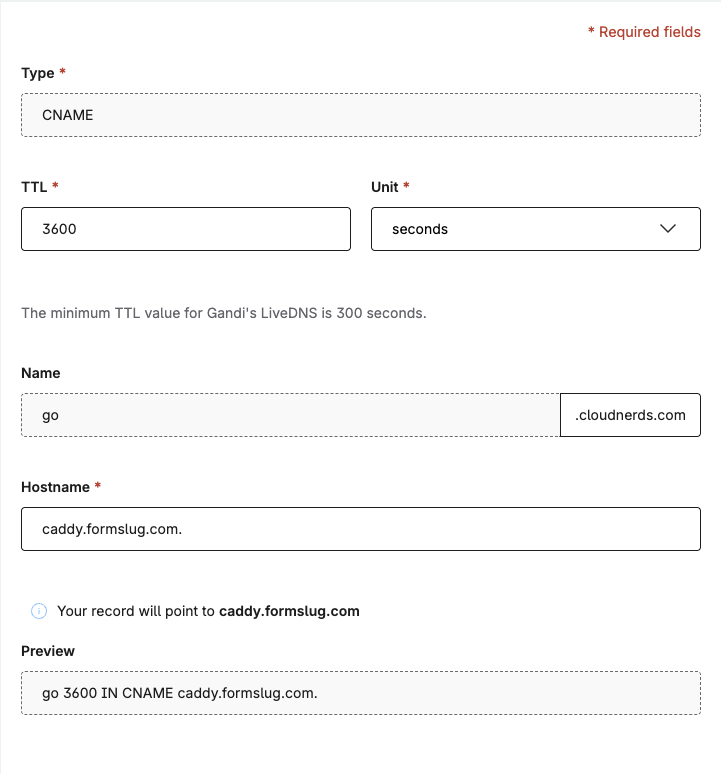
yourcompany.com). - Add a CNAME record with the following values:
- Name/Host:
go(or your chosen subdomain) - Value/Target:
caddy.formslug.com. - TTL:
3600(1 hour) or leave as default
- Name/Host:
- Click Save or Add Record.
Note: Some DNS providers require a trailing dot (.) after the target value. If your provider shows an error, try caddy.formslug.com without the dot.
For provider-specific step-by-step instructions (Cloudflare, GoDaddy, Namecheap, Squarespace, Route 53, OVH, Gandi, Hover), see Add the CNAME at your DNS provider.
DNS changes can take a few minutes to propagate — sometimes longer, depending on your provider.
Verify the domain
Section titled “Verify the domain”FormSlug checks the CNAME record automatically. The status on the Custom domain view moves through:
- Pending — record not detected yet.
- Verified — your domain is live. New slugs are issued on this domain.
- Failed — the record doesn’t match. Double-check the host and value, then click Re-check.
Setting the CNAME proves you control the domain, so there’s no separate verification step.
After your domain is verified
Section titled “After your domain is verified”- New slugs are created on your custom domain by default.
- The shared
go.formslug.com/<slug>URL also keeps working, so links you’ve already shared don’t break.
Disconnect a custom domain
Section titled “Disconnect a custom domain”- Open Custom domain in the dashboard.
- Click Remove domain.
- Confirm.
After disconnecting slugs created on this custom domain will stop resolving via that URL. Existing shared-domain slugs are unaffected. You can re-add a custom domain later.
This will also free the SSL certificate.
Troubleshooting
Section titled “Troubleshooting”- Status stuck on Pending — DNS records can take time to propagate. Wait a few minutes and click Re-check.
- Status shows Failed — confirm the host and value in your DNS provider exactly match what FormSlug shows. Watch for trailing dots and typos.
- Subdomain already in use — if the subdomain currently points somewhere else (e.g. a redirect service), remove or change that record before adding the CNAME.
What’s next
Section titled “What’s next”- Create a link on your new domain.
- Invite teammates so they can use the new domain too.